SIEM • Updated Apr 23, 2026
Health check IBM QRadar v7.5
Reference for performing health checks on IBM QRadar SIEM version 7.5
This cheat sheet provides a reference for performing health checks on IBM QRadar SIEM version 7.5. It covers when and why to run checks (e.g. before upgrades or when issues arise) and outlines the node scope (Console, App Host, Event Processors, etc.), noting any unspecified IPs.
All health checks
Run all health checks on the current host (Console or App Host) using the drq command:
drq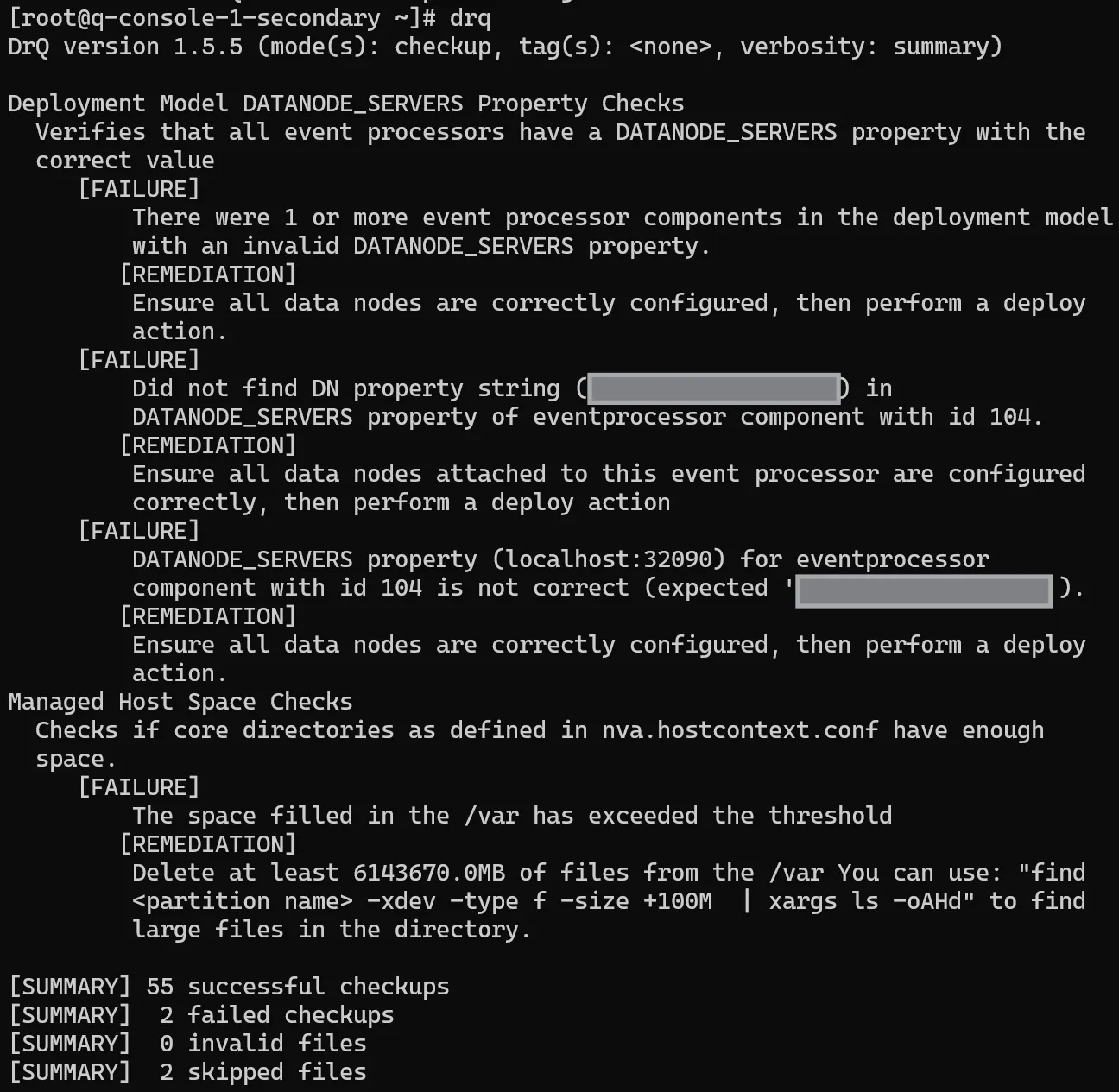
The command output provides failures and suggests remediation actions.
Run a comprehensive config/validate on all appliances using:
/opt/qradar/support/all_servers.sh -CV-C-> run command on all hosts-V-> validate configuration
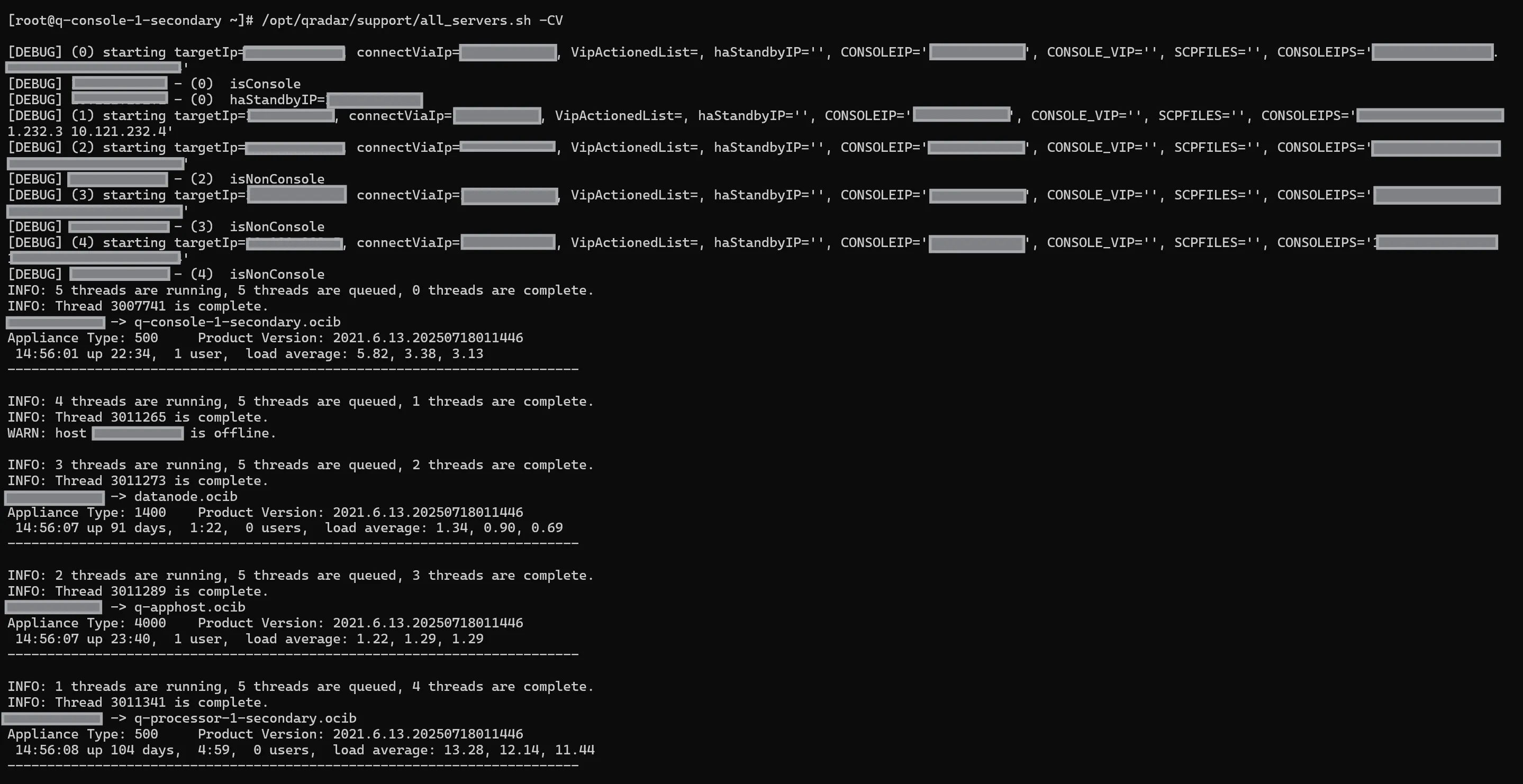
This checks all nodes and prints availability + load + version.
You can also execute drq on all nodes in the deployment:
/opt/qradar/support/all_servers.sh -C drqService problems
QRadar uses Tomcat as the UI server. Check status and restart if needed:
systemctl status tomcatsystemctl restart tomcatThere are also important services like hostcontext, hostservices, qflow, podman, ecs-ec-ingress, ecs-ec, ecs-ep. All of them should be active. Check status:
systemctl status hostcontext hostservices ecs-ec-ingress ecs-ec ecs-ep qflow podman --no-pager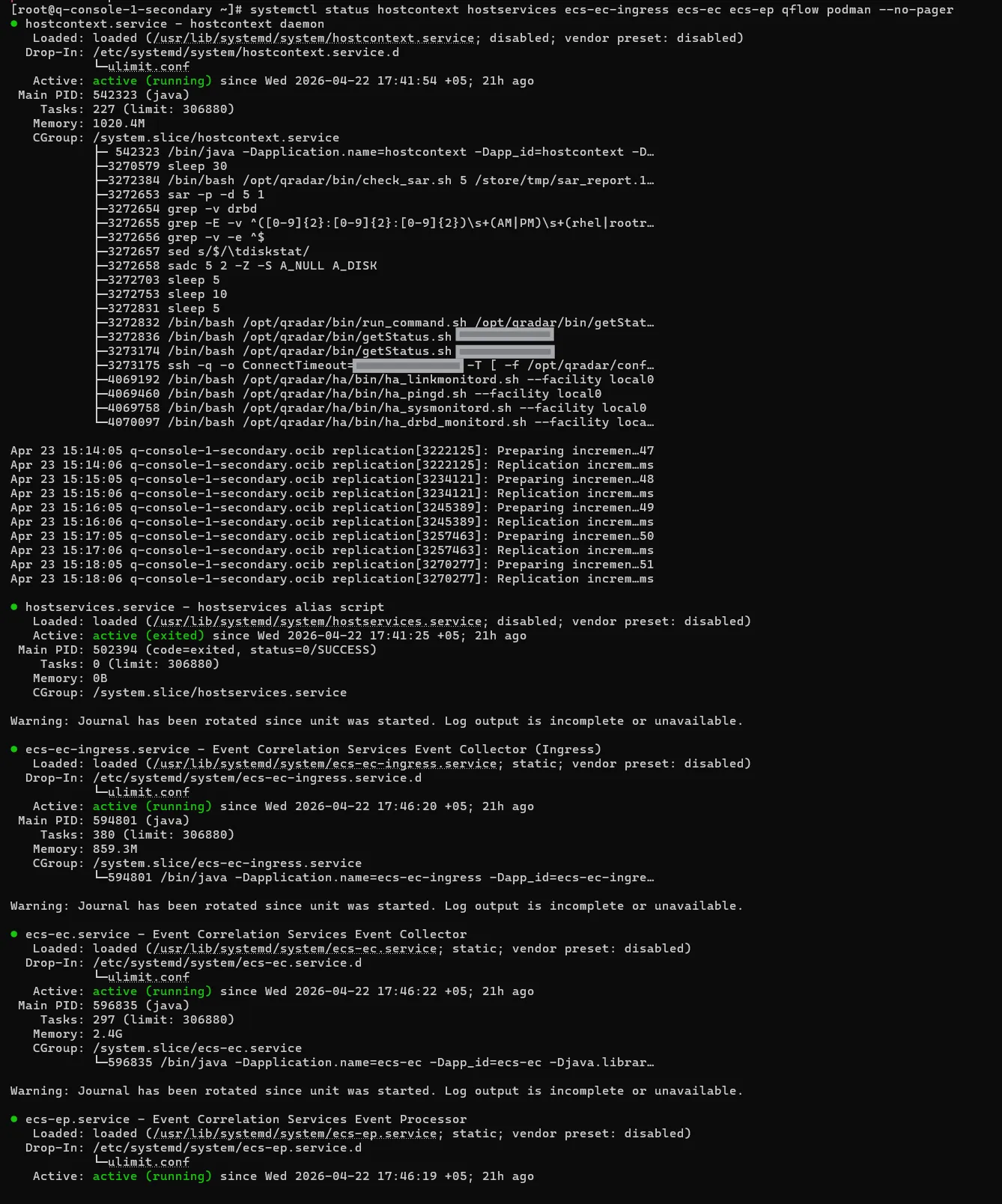
Logs check
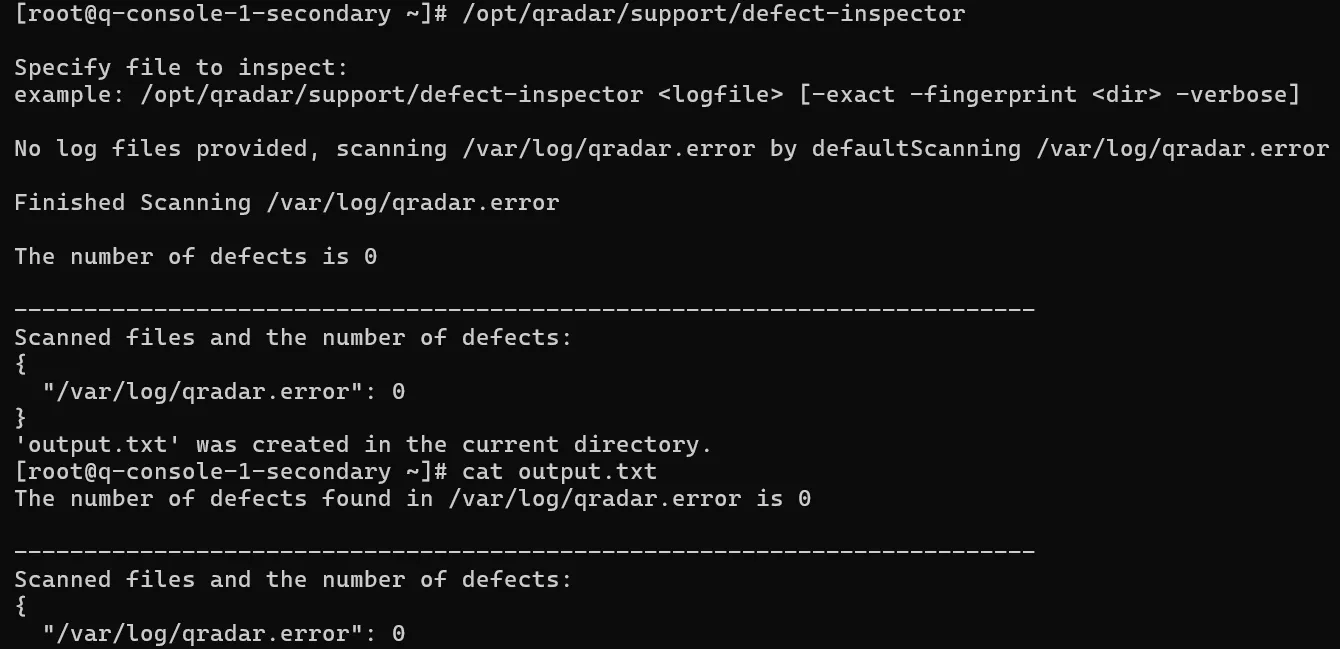
Use /opt/qradar/support/defect-inspector.sh to scan log files for known issues, APARs, or defects. By default it scans /var/log/qradar.error.
Applications problem
Show the status of installed applications:
psql -U qradar -c "select id,name,status,task_status from installed_application_instance;"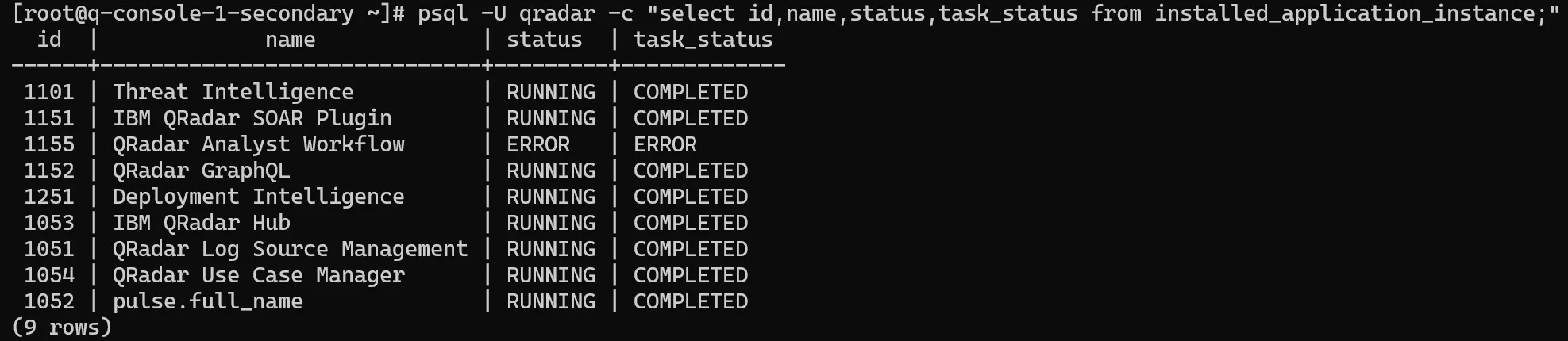
Disk space and CPU issues
Use:
free -hdf -htopDeployment validation
Validate the deployment:
/opt/qradar/support/validate_deployment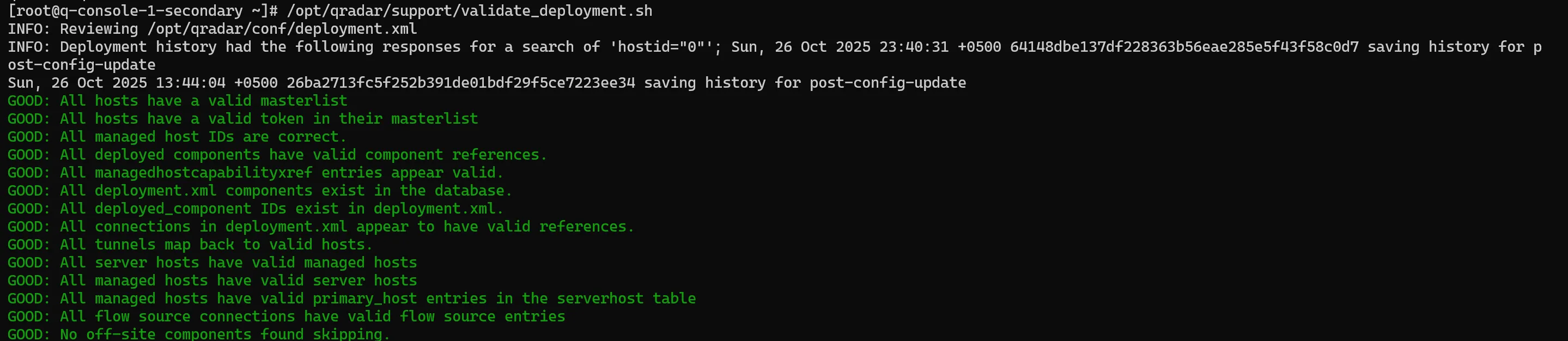
WinCollect health is also matter!
IBM provides ready to use script to validate WinCollect health.
/opt/qradar/support/WinCollectHealthCheck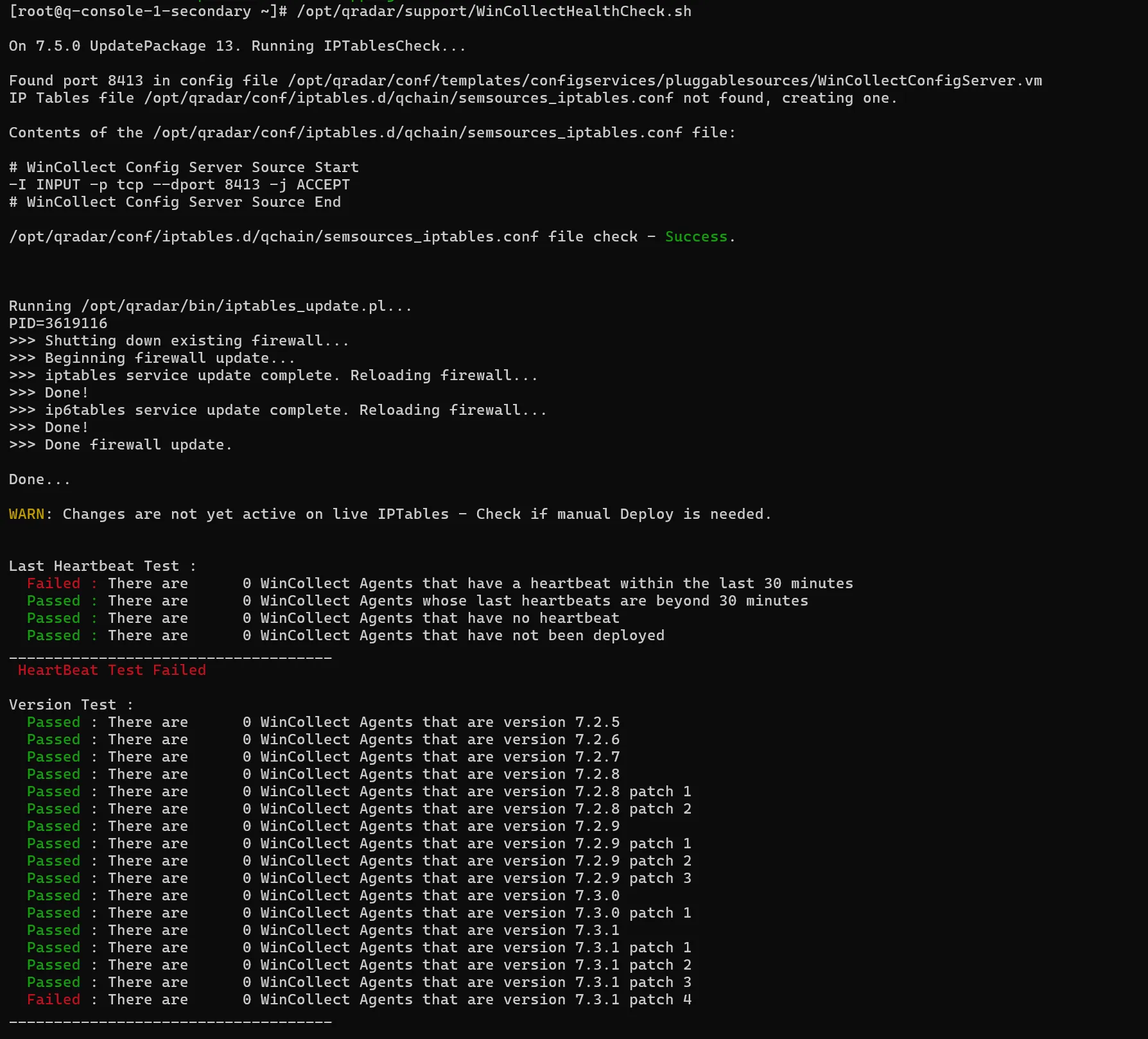
Common problems
-
/varpartition is full.Terminal window find /var -xdev -type f -size +100M | ls -lhdf -h / /store /var/log -
HA problems.
Terminal window /opt/qradar/support/ha_diagnosis.sh -
UI problems.
Terminal window /opt/qradar/support/all_servers.sh -CVAsystemctl restart tomcatsystemctl restart traefiksystemctl restart hostcontextsystemctl restart hostservices -
Applications issues.
Terminal window /opt/qradar/support/qappmanager
Suggested troubleshooting flow
- Run
drqto identify issues. - Check services status.
- Verify disk and memory usage.
- Validate deployment.
- Investigate logs.
Logs locations
- QRadar system logs: /var/log/qradar.log, /var/log/qradar.error
- Tomcat logs: /var/log/tomcat/ (e.g. catalina.out, qradar.log under webapps)
- Setup/installation logs: /var/log/setup/ (fix pack or ISO install logs)
- Deployment config: /opt/qradar/conf/deployment.xml
- UI files: /opt/tomcat/webapps/console directory and console.war
Summary
🧾 Commands Summary
| Command | Description |
|---|---|
drq | Run health checks on current host |
drq -v | Run health checks in verbose mode |
/opt/qradar/support/all_servers.sh -CV | Check all nodes (availability, load, version) |
/opt/qradar/support/all_servers.sh -C drq | Run health checks on all nodes |
systemctl status tomcat | Check UI (Tomcat) status |
systemctl restart tomcat | Restart UI service |
systemctl status hostcontext hostservices ecs-ec-ingress ecs-ec ecs-ep qflow podman | Check core QRadar services |
systemctl is-active hostcontext hostservices ecs-ec-ingress ecs-ec ecs-ep qflow podman | Quick check if services are running |
/opt/qradar/support/defect_inspector.sh | Scan logs for known issues/APARs |
psql -U qradar -c "select id,name,status,task_status from installed_application_instance;" | Check installed applications status |
/opt/qradar/support/qappmanager | Manage (restart/stop/remove) apps |
free -h | Check memory usage |
df -h | Check disk usage |
top | Monitor CPU and processes |
/opt/qradar/support/validate_deployment.sh | Validate deployment configuration |
/opt/qradar/support/WinCollectHealthCheck | Check WinCollect agents health |
/opt/qradar/support/ha_diagnosis.sh | Diagnose HA issues |
/opt/qradar/support/all_servers.sh -CVA | Full recovery (config + validation) |
systemctl restart hostcontext hostservices | Restart core services |
systemctl restart traefik | Restart UI routing (proxy) |
ping <ip> | Check network connectivity |
netstat -tulnp | grep 443 | Check listening ports (UI/API) |